# WhatsApp Onboarding Error: Payment Method Already Exists
> Fixing "A Payment Method Already Exists for the Current WhatsApp Business Account" If you encounter the error message "Please create a new WhatsApp…
- Source: https://docs.ghlcustomercare.com/docs/reselling-products/whatsapp/whatsapp-onboarding-error-payment-method-already-exists
- Section: Reselling Products / WhatsApp
- Reading time: 3 min
- Images: 1, each explained below
---
# Fixing "A Payment Method Already Exists for the Current WhatsApp Business Account"
If you encounter the error message "Please create a new WhatsApp Business Account since a payment method already exists for the current WhatsApp Business Account," this means your existing WhatsApp Business Account (WABA) already has an active payment method associated with it.
TABLE OF CONTENTS
Meta does not allow a WABA with an existing payment method to be connected again through another platform. Therefore, the onboarding process will fail if you try to reuse that WABA.
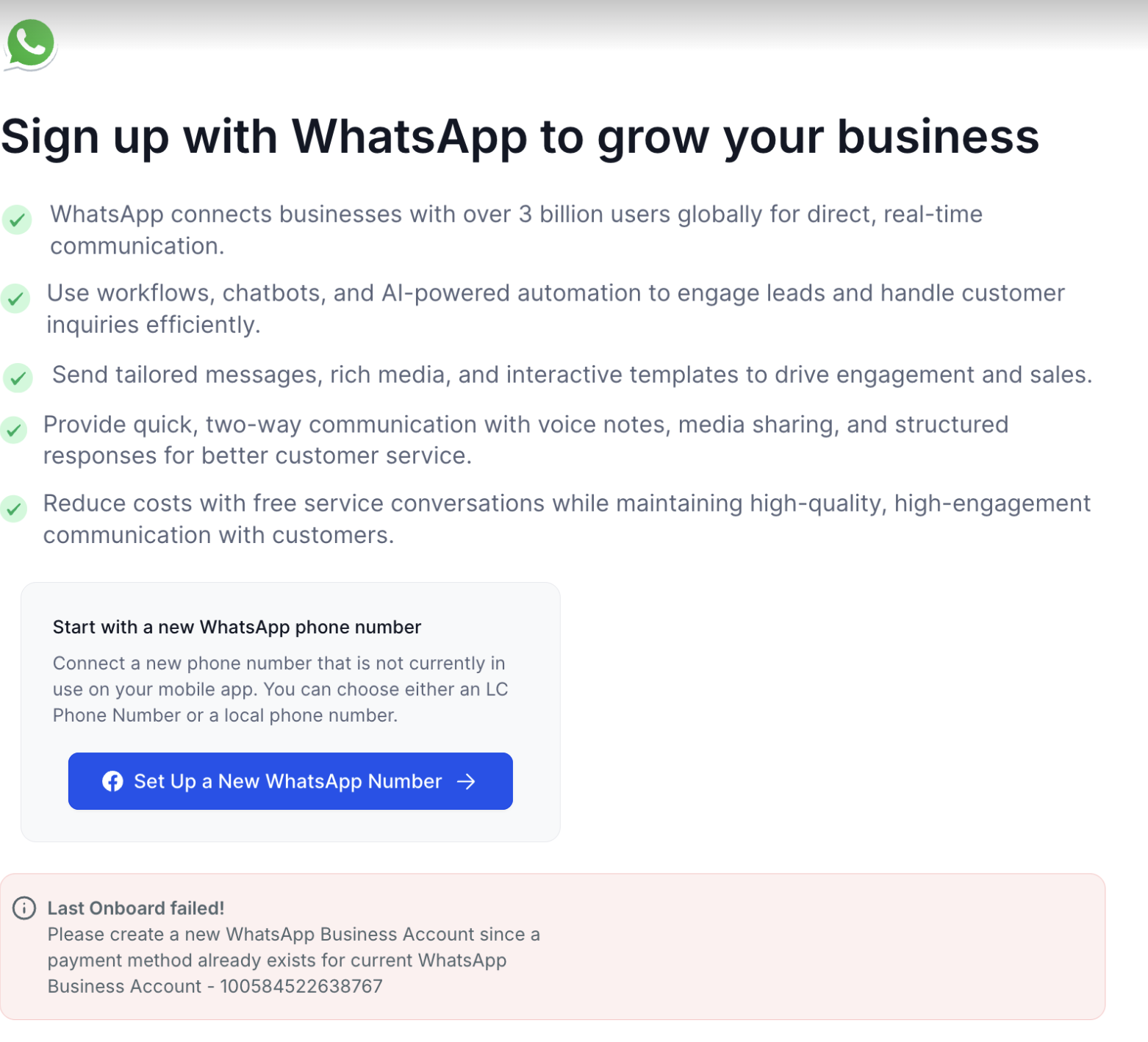
**Fixing "A Payment Method Already Exists for the Current WhatsApp Business Account" (image 1 of 1)**
This screenshot appears in the "Fixing "A Payment Method Already Exists for the Current WhatsApp Business Account"" section of "WhatsApp Onboarding Error: Payment Method Already Exists". For context, this section explains: Fixing "A Payment Method Already Exists for the Current WhatsApp Business Account" If you encounter the error message "Please create a new WhatsApp Business Account since a payment method already exists for the current WhatsApp Business Account," this means your existing WhatsApp Business Account…. This part of the guide covers 10 fields, listed below.
- Fields: GHL Customer Care Location ID, Phone number with country code, WABA ID, Phone Number ID, if available, Exact error message, Screenshot of the error, Approximate time of the failed attempt, Onboarding path used, Troubleshooting steps already completed, Any Meta error code or fbtrace_id, if available
- Controls: Coexistence, Migrate from an Existing BSP, new WABA, Evidence Required for Escalation, not
Example values (illustrative, not read from the screenshot):
- Phone number with country code: +1 312 847 1928
- Phone Number ID, if available: +1 312 847 1928
Full procedure:
1. The WABA you are trying to connect has already been used previously (either directly in Meta or through another Business Solution Provider).
2. Meta prevents connecting a WABA that already has a billing setup or payment method to another BSP (Business Solution Provider) to avoid duplicate billing.
## Why This Happens
This error occurs because:
- The WABA you are trying to connect has already been used previously (either directly in Meta or through another Business Solution Provider).
- Meta prevents connecting a WABA that already has a billing setup or payment method to another BSP (Business Solution Provider) to avoid duplicate billing.
## How to Fix the Issue
To successfully complete onboarding, you need to create a new WhatsApp Business Account (WABA) under your existing Meta Business Manager. Follow the steps below:
Log in using the Facebook account that manages your business assets.
2
Create a New WhatsApp Business Account
In the left-hand menu, go to Accounts → WhatsApp Accounts.
Click on + Add.
Select Create a New WhatsApp Business Account.
Enter a unique name for the new account (example: YourBusinessName-New).
Complete the setup prompts.
3
Return to CRM
Go back to your CRM WhatsApp onboarding flow.
When prompted to select a WhatsApp Business Account, choose the newly created WABA.
Continue the onboarding process normally.
## **Which Setup Should You Use?**
- **Using the WhatsApp Business App and want to keep using it?** Use **Coexistence** if eligible.
- **Moving from another WhatsApp provider?** Use **Migrate from an Existing BSP** when applicable.
- **Starting with a new or unused number?** Create a **new WABA**.
- **Seeing the payment-method error on the selected WABA?** Create or select a different eligible WABA.
**Important:** Creating a new WABA does not always mean you need a new phone number.
## **What if the New WABA Still Fails?**
A new WABA can still fail if the phone number is already connected somewhere else or another onboarding issue exists.
Check the following:
1. Confirm the new WABA was selected.
2. Read the new error message carefully.
3. Check whether the phone number is still connected to WhatsApp, WhatsApp Business, or another provider.
4. Confirm you are using the correct onboarding path.
5. Retry phone verification.
6. If the issue continues, collect the escalation details below.
## **What Does “Last Onboarding Failed” Mean?**
This message can appear when the WABA is already connected to another GHL Customer Care Location.
If the error says the WABA is already onboarded to a Location ID:
1. Note the Location ID in the error.
2. Find the GHL Customer Care Location where the WABA is currently connected.
3. Disconnect the WABA from that Location.
4. Return to the correct Location and restart onboarding.
Do not create another WABA just because of this error.
## **Evidence Required for Escalation**
If onboarding still fails, collect the following before contacting support:
- GHL Customer Care Location ID
- Phone number with country code
- WABA ID
- Phone Number ID, if available
- Exact error message
- Screenshot of the error
- Approximate time of the failed attempt
- Onboarding path used
- Whether the number is connected to WhatsApp, WhatsApp Business, or another provider
- Troubleshooting steps already completed
- Any Meta error code or `fbtrace_id`, if available
## Additional Tips
Do **not** delete your old WABA if it's linked to other services or campaigns.
- If you are unsure which payment method is attached, visit [Meta Payment Settings](https://business.facebook.com/billing_hub) to review existing setups.
- Always use a new WABA for onboarding if you've previously connected the same number with another provider.
---
Documentation for GHL Customer Care. Support: support@ghlcustomercare.com