# Mobile App - Inbound Call Transfer

> Learn how to transfer inbound calls in the mobile app using warm or blind transfer, manage participants, and route calls to the right team member.

- Source: https://docs.ghlcustomercare.com/docs/mobile-and-desktop-app/mobile-app/mobile-app-inbound-call-transfer
- Section: Mobile & Desktop App / Mobile App
- Reading time: 3 min
- Images: 3, each explained below
- Modified on Tue, 3 Mar at 3:29 PM

---
This article explains how to use the new Inbound Call Transfer feature on the GHL Customer Care mobile app. You can now seamlessly transfer incoming calls to other team members, choose between warm or blind transfer modes, and manage live call participants, all from your phone!

---

**TABLE OF CONTENTS**

-   [What is Inbound Call Transfer on Mobile?](#what-is-inbound-call-transfer-on-mobile)
-   [Key Benefits of Mobile Inbound Call Transfers](#key-benefits-of-mobile-inbound-call-transfers)
-   [How To Use Inbound Call Transfer on the Mobile App](#how-to-use-inbound-call-transfer-on-the-mobile-app)
-   [Warm Transfer vs Blind Transfer](#warm-transfer-vs-blind-transfer)
-   [Smart Participant Management Features](#smart-participant-management-features)
-   [Frequently Asked Questions](#frequently-asked-questions)

---

# **What is Inbound Call Transfer on Mobile?**

Inbound Call Transfer allows mobile app users to hand off incoming calls to other staff members in real time. You can choose to leave the call immediately (blind transfer) or stay on the line temporarily to provide context (warm transfer). This feature gives you more flexibility and control while handling calls from your mobile device.

---

## **Key Benefits of Mobile Inbound Call Transfers**

Mobile call transfers enable better teamwork and smoother customer service, especially when you’re away from your desk.

-   Seamlessly transfer calls from your mobile app
    
-   Choose between warm or blind transfers based on the call type
    
-   Stay in the conversation to provide important context when needed
    
-   See and manage all call participants directly from the app
    
-   Leave the call without ending it for others
    
-   Remove or disconnect other participants (like team members) if needed
    

---

## **How To Use Inbound Call Transfer on the Mobile App**

Understanding how to initiate a call transfer from your mobile device ensures fast and effective handoffs during live calls.

#### **Step 1:** Answer an Inbound Call

Pick up any incoming call from the GHL Customer Care or LeadConnector mobile app.

#### **Step 2:** Tap the Transfer Button

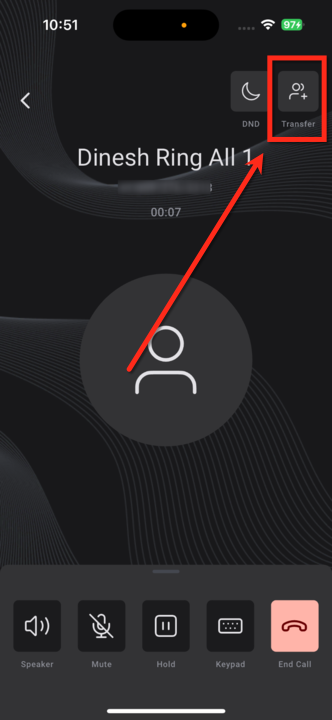
Tap the **Transfer** button located in the **top-right corner** of the call screen.


<table class="fr-no-borders" style="max-width: 100%; width: 718px"><tbody><tr><td style="min-width: 5px; width: 359px"><p>
![Step 2: Tap the Transfer Button (image 1 of 3)](https://s3.amazonaws.com/cdn.freshdesk.com/data/helpdesk/attachments/production/155066132030/original/nAmB8AEr_pZRs-cTQdVBB0G1Pdlz2NWQoQ.png)

**Step 2: Tap the Transfer Button (image 1 of 3)**

This screenshot appears in the "Step 2: Tap the Transfer Button" section of "Mobile App - Inbound Call Transfer". The text alongside this image reads: Tap the Transfer button located in the top-right corner of the call screen. Immediately after, the guide continues: Your Staff List Contacts The Dial Pad Recent Calls.
- What to click: Tap the Transfer button located in the top-right corner of the call screen.
- Controls: Transfer, top-right corner
- Next: Your Staff List Contacts The Dial Pad Recent Calls
</p></td><td style="min-width: 5px; width: 359px"><br style="font-weight: 400; text-align: left"></td></tr></tbody></table>

#### **Step 3:** Select the Recipient

Choose a team member from:

-   Your Staff List
    
-   Contacts
    
-   The Dial Pad
    
-   Recent Calls
    

#### **Step 4:** Choose Transfer Type

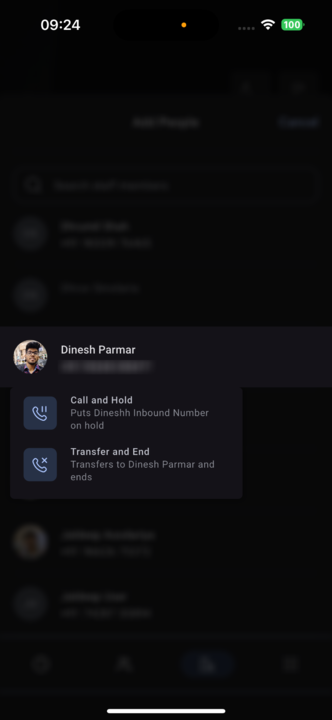
You’ll be prompted to choose between:

-   **Warm Transfer** – Stay in the call to provide context or introduce the caller.
    
-   **Blind Transfer** – Instantly hand off the call and disconnect.


<table class="fr-no-borders" style="max-width: 100%; width: 718px"><tbody><tr><td style="min-width: 5px; width: 359px"><p>
![Step 4: Choose Transfer Type (image 2 of 3)](https://s3.amazonaws.com/cdn.freshdesk.com/data/helpdesk/attachments/production/155066132232/original/dce6z0ViD3wgBt6sSF13QkG1TuQ0vfG5Og.png)

**Step 4: Choose Transfer Type (image 2 of 3)**

This screenshot appears in the "Step 4: Choose Transfer Type" section of "Mobile App - Inbound Call Transfer". The text alongside this image reads: Warm Transfer – Stay in the call to provide context or introduce the caller. Blind Transfer – Instantly hand off the call and disconnect. Immediately after, the guide continues: Slide up the participant panel from the bottom of the screen. Choose to.
- What to fill in: Warm Transfer – Stay in the call to provide context or introduce the caller. Blind Transfer – Instantly hand off the call and disconnect.
- Controls: Warm Transfer, Blind Transfer
- Next: Slide up the participant panel from the bottom of the screen. Choose to:

Full procedure:

1. Warm Transfer – Stay in the call to provide context or introduce the caller.
2. Blind Transfer – Instantly hand off the call and disconnect.
</p></td><td style="min-width: 5px; width: 359px"><br style="font-weight: 400; text-align: left"></td></tr></tbody></table>

#### **Step 5:** Manage Call Participants (For Warm Transfers)

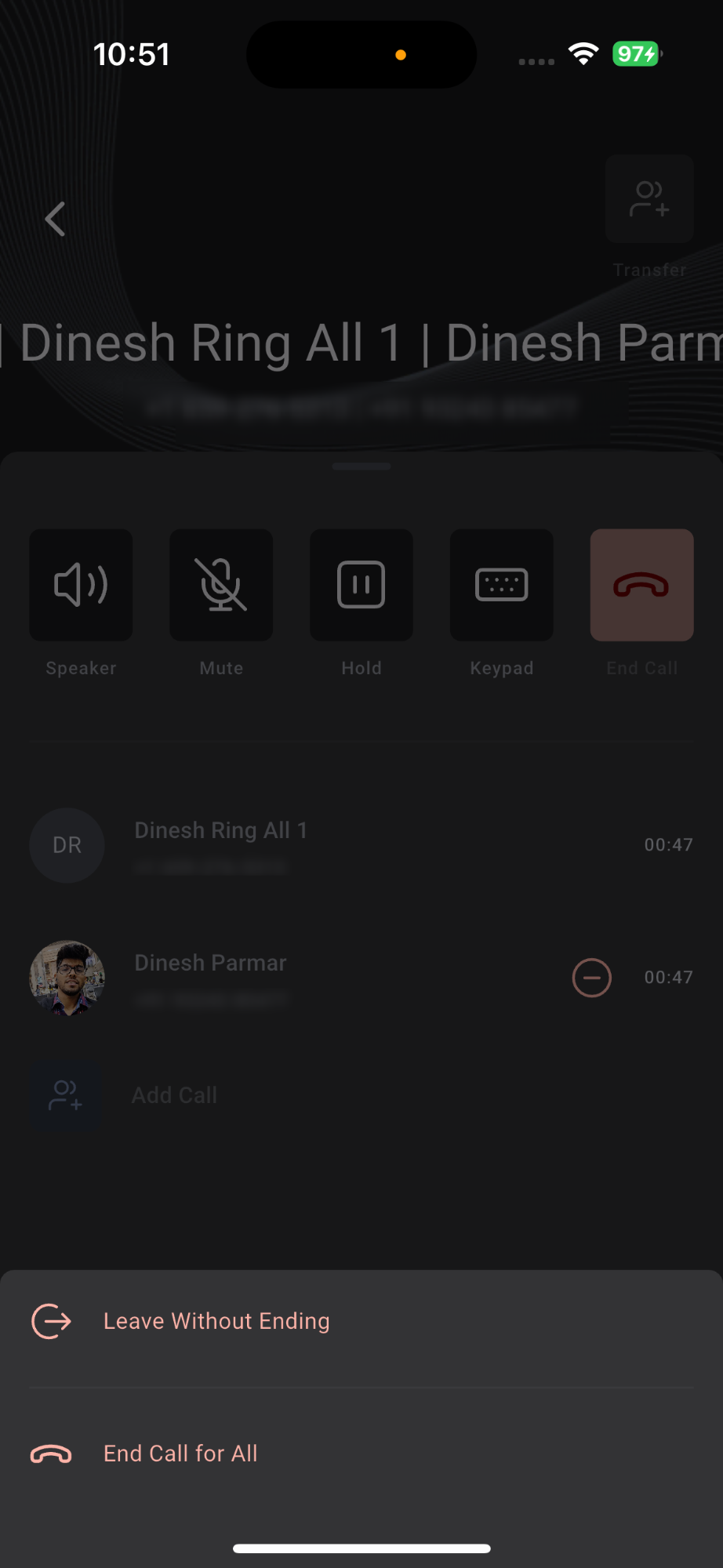
1.  Slide up the participant panel from the bottom of the screen.
    
2.  Choose to:
    
    -   Leave the call without ending it
        
    -   End the call for everyone
        
    -   Remove individual participants (e.g., another staff member)
        

<table class="fr-no-borders" style="width: 100%"><tbody><tr><td style="width: 50.0000%"><p>
![Step 5: Manage Call Participants (For Warm Transfers) (image 3 of 3)](https://s3.amazonaws.com/cdn.freshdesk.com/data/helpdesk/attachments/production/155066131957/original/p8nulVcE04DAYIjP3yI3D8g8qJAf4KkHHw.png)

**Step 5: Manage Call Participants (For Warm Transfers) (image 3 of 3)**

This screenshot appears in the "Step 5: Manage Call Participants (For Warm Transfers)" section of "Mobile App - Inbound Call Transfer". The text alongside this image reads: Slide up the participant panel from the bottom of the screen. Choose to. This part of the guide covers 2 fields, listed below. Immediately after, the guide continues: Understanding the difference between warm and blind transfers helps you choose the best method based on the situation.
- What to choose: Slide up the participant panel from the bottom of the screen. Choose to:
- Fields: Leave the call without ending it, End the call for everyone
- Next: Understanding the difference between warm and blind transfers helps you choose the best method based on the situation.

Full procedure:

1. Slide up the participant panel from the bottom of the screen.
2. Choose to:
</p></td><td style="width: 50.0000%"></td></tr></tbody></table>

---

## **Warm Transfer vs Blind Transfer**

Understanding the difference between warm and blind transfers helps you choose the best method based on the situation.

**Warm Transfer**

Transfers the call while keeping you on the line, ideal for:

-   Introducing another team member
    
-   Providing customer context
    
-   Supervising or monitoring escalations
    

**Blind Transfer**

Instantly transfers the call and disconnects you. Best for:

-   Quick handoffs when you don’t need to stay involved
    
-   Calls to external departments or third parties
    
-   Escalating to voicemail or external numbers
    

---

## **Smart Participant Management Features**

Smart participant controls allow you to dynamically manage who stays in the call and when — directly from your phone.

You can:

-   View all participants via a scrollable bottom sheet
    
-   Leave the call without ending it for others
    
-   Remove another team member from the call
    
-   End the entire call for all participants if needed
    

---

## **Frequently Asked Questions**

**Q: What’s the difference between outbound and inbound transfers?**

Inbound transfers are used when you’re receiving a call and want to pass it to someone else. Outbound transfers occur when you initiate a call and want to involve another person.

**Q: Can I transfer calls to external numbers?**

Yes! You can use the dial pad to transfer to external phone numbers if permitted in your user settings.

**Q: Is this available on all mobile versions?**

This feature is supported on:

-   **GHL Customer Care v3.97.3 and above**
    
-   **LeadConnector v3.97.3 and above**
    
    For White Labeled apps, you’ll need to request the update from your provider.
    

**Q: Can I return to the call after transferring it?**

No, once you complete a blind or warm transfer (and leave), you cannot rejoin the conversation.

**Q: Will the caller know they are being transferred?**

There is no system-generated notification, but if you speak during a warm transfer, the caller will hear your voice and may understand the context.

---

Documentation for GHL Customer Care. Support: support@ghlcustomercare.com