# How to import HTML Email Templates/ Campaigns
> Are you tired of manually building email templates on different platforms, or do you happen to have several go-to template
With the HTML Email builder, you can effortlessly import your pre-existing email templates from a variety of systems. This conveni
- Source: https://docs.ghlcustomercare.com/docs/marketing/templates-2/how-to-import-html-email-templates-campaigns
- Section: Marketing / Templates
- Reading time: 1 min
- Images: 7, each explained below
---
Are you tired of manually building email templates on different platforms, or do you happen to have several go-to templates?
With the HTML Email builder, you can effortlessly import your pre-existing email templates from various systems. This convenient feature saves you time and energy, as you can manage all your email campaigns in one unified platform while utilizing your top-performing emails.
---
#### **Covered in this article:**
#### [Steps to Use HTML Email Templates/Campaigns](#steps-to-use-html-email-templates-campaigns)
- #### [For Templates](#for-templates)
- #### [For Campaigns](#relevant-help-docs)
#### Relevant Help Docs
---
# **Steps to Use HTML Email Templates/ Campaigns**
The user will be required to visit the **Marketing > Email Builder**.
# **For Templates**
1. The user needs to click Create New Template.
2. In the dropdown, there are 3 options. Select the option of Blank Template from the three options.

**For Templates (image 1 of 7)**
This screenshot appears in the "For Templates" section of "How to import HTML Email Templates/ Campaigns". The text alongside this image reads: The user needs to click Create New Template. In the dropdown, there are 3 options. Select the option of Blank Template from the three options. Immediately after, the guide continues: 3. There will be a popup window with the option of Design Editor (drag and drop builder) and Code Editor (HTML builder). The user needs to select the Code Editor.
- What to choose: The user needs to click Create New Template. In the dropdown, there are 3 options. Select the option of Blank Template from the three options.
- Next: 3. There will be a popup window with the option of Design Editor (drag and drop builder) and Code Editor (HTML builder). The user needs to select the Code Editor.
Full procedure:
1. The user needs to click Create New Template.
2. In the dropdown, there are 3 options. Select the option of Blank Template from the three options.
3\. There will be a popup window with the option of Design Editor (drag and drop builder) and Code Editor (HTML builder). The user needs to select the Code Editor.

**For Templates (image 2 of 7)**
This screenshot appears in the "For Templates" section of "How to import HTML Email Templates/ Campaigns". The text alongside this image reads: 3. There will be a popup window with the option of Design Editor (drag and drop builder) and Code Editor (HTML builder). The user needs to select the Code Editor. Immediately after, the guide continues: 4. Once the Code Editor opens, please paste HTML in the Editor area to get the preview.
- What to choose: 3. There will be a popup window with the option of Design Editor (drag and drop builder) and Code Editor (HTML builder). The user needs to select the Code Editor.
- Next: 4. Once the Code Editor opens, please paste HTML in the Editor area to get the preview.
Full procedure:
1. The user needs to click Create New Template.
2. In the dropdown, there are 3 options. Select the option of Blank Template from the three options.
4. Once the Code Editor opens, please paste HTML in the Editor area to get the preview.

**For Templates (image 3 of 7)**
This screenshot appears in the "For Templates" section of "How to import HTML Email Templates/ Campaigns". The text alongside this image reads: 4. Once the Code Editor opens, please paste HTML in the Editor area to get the preview. Immediately after, the guide continues: The user needs to click Create Campaign.
- What to copy: 4. Once the Code Editor opens, please paste HTML in the Editor area to get the preview.
- Next: The user needs to click Create Campaign.
Full procedure:
1. The user needs to click Create New Template.
2. In the dropdown, there are 3 options. Select the option of Blank Template from the three options.
---
# **For Campaigns**
1. The user needs to click Create Campaign.

**For Campaigns (image 4 of 7)**
This screenshot appears in the "For Campaigns" section of "How to import HTML Email Templates/ Campaigns". The text alongside this image reads: The user needs to click Create Campaign. Immediately after, the guide continues: 2. There will also be a screen with a list of all the templates and blank campaigns. Select the option of Blank Campaign to go forward.
- What to click: The user needs to click Create Campaign.
- Next: 2. There will also be a screen with a list of all the templates and blank campaigns. Select the option of Blank Campaign to go forward.
2\. There will also be a screen with a list of all the templates and blank campaigns. Select the option of Blank Campaign to go forward.

**For Campaigns (image 5 of 7)**
This screenshot appears in the "For Campaigns" section of "How to import HTML Email Templates/ Campaigns". The text alongside this image reads: 2. There will also be a screen with a list of all the templates and blank campaigns. Select the option of Blank Campaign to go forward. Immediately after, the guide continues: 3. There will be a popup window with the option of Design Editor (drag and drop builder) and Code Editor (HTML builder). The user needs to select the Code Editor.
- What to choose: 2. There will also be a screen with a list of all the templates and blank campaigns. Select the option of Blank Campaign to go forward.
- Next: 3. There will be a popup window with the option of Design Editor (drag and drop builder) and Code Editor (HTML builder). The user needs to select the Code Editor.
3\. There will be a popup window with the option of Design Editor (drag and drop builder) and Code Editor (HTML builder). The user needs to select the Code Editor.

**For Campaigns (image 6 of 7)**
This screenshot appears in the "For Campaigns" section of "How to import HTML Email Templates/ Campaigns". The text alongside this image reads: 3. There will be a popup window with the option of Design Editor (drag and drop builder) and Code Editor (HTML builder). The user needs to select the Code Editor. Immediately after, the guide continues: 4. Once the Code Editor opens, please paste HTML in the Editor area to get the preview.
- What to choose: 3. There will be a popup window with the option of Design Editor (drag and drop builder) and Code Editor (HTML builder). The user needs to select the Code Editor.
- Next: 4. Once the Code Editor opens, please paste HTML in the Editor area to get the preview.
4. Once the Code Editor opens, please paste HTML in the Editor area to get the preview.
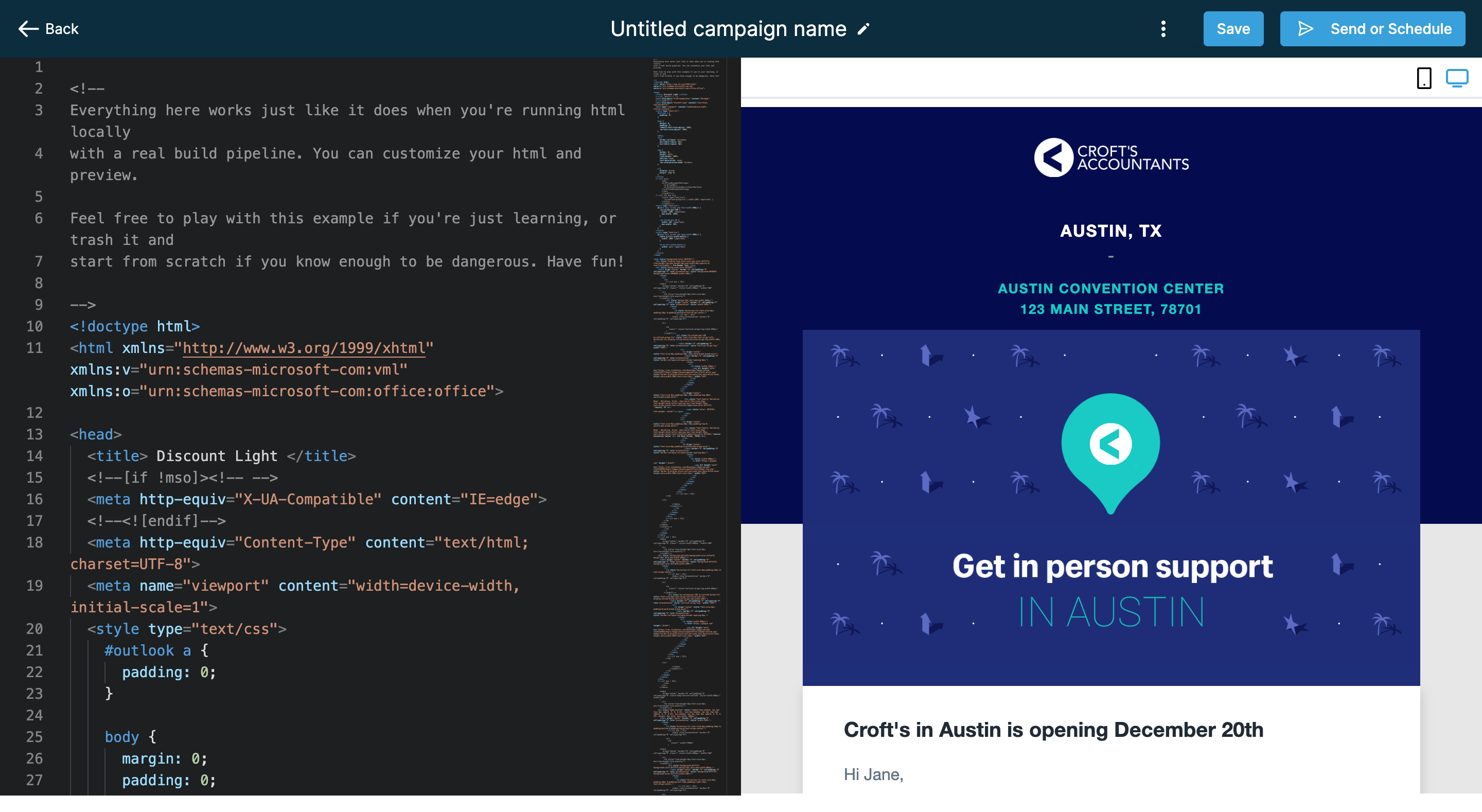
**For Campaigns (image 7 of 7)**
This screenshot appears in the "For Campaigns" section of "How to import HTML Email Templates/ Campaigns". The text alongside this image reads: 4. Once the Code Editor opens, please paste HTML in the Editor area to get the preview. Immediately after, the guide continues: Preview And Test Your Email Campaign/Templates Email Templates vs. Email Campaigns Email Builder Overview How to use RSS Blocks in the Email Builder How to Import Email Template(s) from Mailchimp How to import Email Template(s) from….
- What to copy: 4. Once the Code Editor opens, please paste HTML in the Editor area to get the preview.
- Next: Preview And Test Your Email Campaign/Templates Email Templates vs. Email Campaigns Email Builder Overview How to use RSS Blocks in the Email Builder How to Import Email Template(s) from Mailchimp How to import Email Template(s) from ActiveCampaign
---
### **Help Docs**
- **[](https://docs.ghlcustomercare.com/docs/marketing/campaign-settings-functionalities/how-to-preview-test-your-email-campaigns-templates)**[](https://docs.ghlcustomercare.com/docs/marketing/campaign-settings-functionalities/how-to-preview-test-your-email-campaigns-templates)[**Preview And Test Your Email Campaign/Templates**](https://docs.ghlcustomercare.com/docs/marketing/campaign-settings-functionalities/how-to-preview-test-your-email-campaigns-templates)
- **[Email Templates vs. Email Campaigns](https://docs.ghlcustomercare.com/docs/marketing/templates-2/email-templates-vs-email-campaigns)**
- [](http://Email%20Builder%20Overview)[](http://Email%20Builder%20Overview)**Email Builder Overview**
- **[How to use RSS Blocks in the Email Builder](https://docs.ghlcustomercare.com/docs/marketing/rss-guide/rss-blocks-in-email-builder)**
- **[How to Import Email Template(s) from Mailchimp](https://docs.ghlcustomercare.com/docs/marketing/templates-2/importing-and-editing-mailchimp-email-templates-in-the-ghl-customer-care-design-editor)**
- **[How to import Email Template(s) from ActiveCampaign](https://docs.ghlcustomercare.com/docs/marketing/templates-2/how-to-import-email-template-s-from-activecampaign)**
---
Documentation for GHL Customer Care. Support: support@ghlcustomercare.com